Understanding the Kanban Board
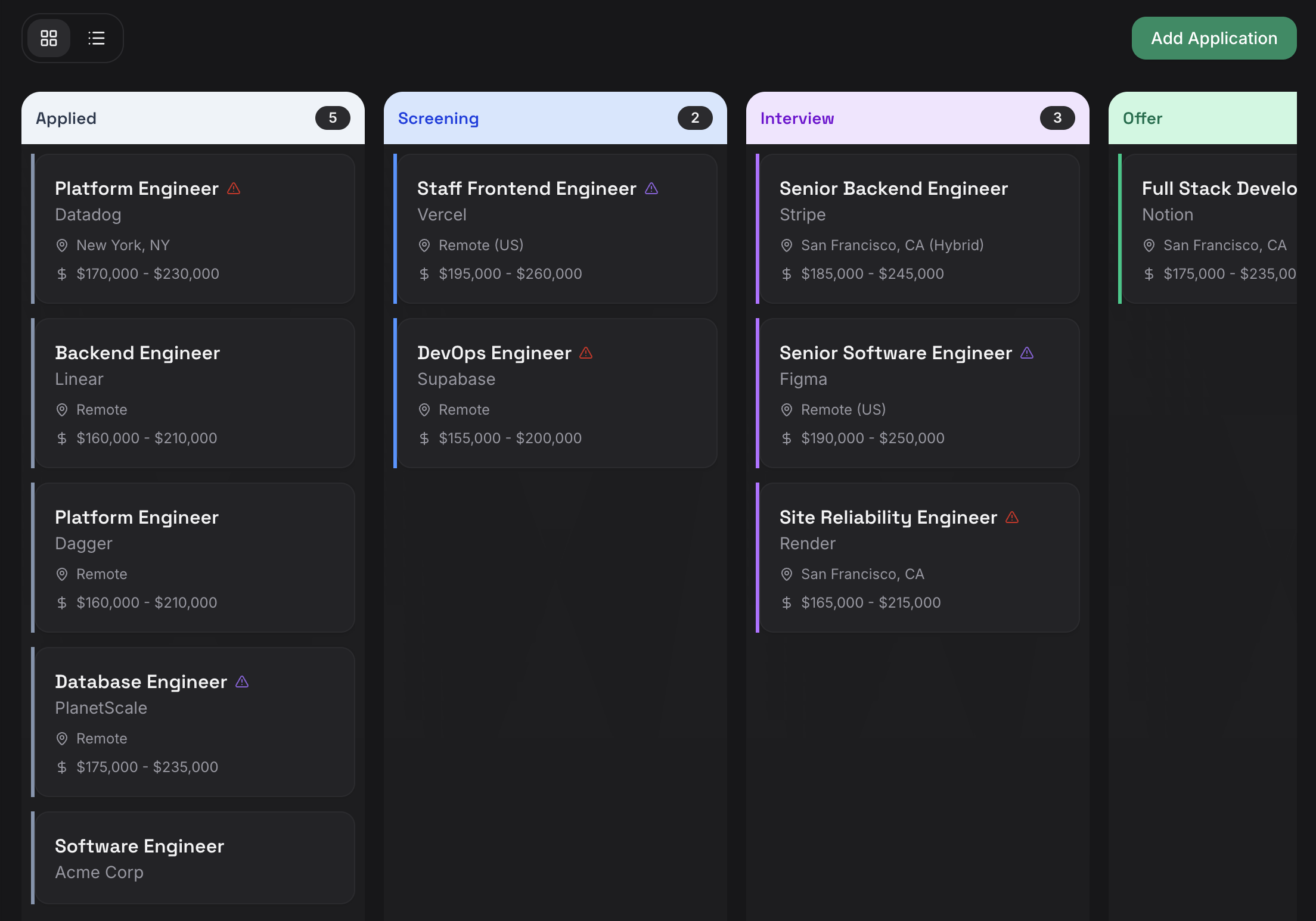
The Kanban board gives you a visual overview of every application in your pipeline, organized by stage. Open it by clicking Applications in the sidebar.
Board Layout
The board is divided into columns, one for each stage of your application pipeline. Each column header shows the number of applications in that stage.
| Column | What It Means |
|---|---|
| Applied | You've submitted an application |
| Screening | Recruiter screen or initial phone call |
| Interview | Active interview process |
| Offer | You've received an offer |
| Closed | Terminal state — accepted, rejected, or withdrawn |
Applications move left to right as they progress through your pipeline.
Reading a Card
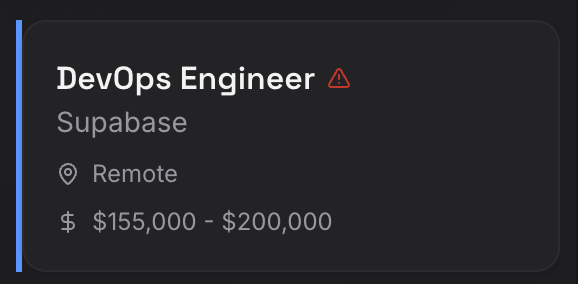
Each application card shows key details at a glance:
- Job title — The role you applied for
- Company name — The employer
- Location — Remote, hybrid, or a specific city and state
- Salary range — Listed or expected compensation
Health Alerts
A triangle icon (:warning:) on a card means the application's health score has dropped. This usually indicates the application may be going stale -- perhaps you haven't heard back or it's been sitting in one stage for a while.
Every active application has a health score from 0 to 100, calculated from three factors:
- Time in current status -- the longer an application sits in one stage, the more the score drops.
- Recent activity -- days since your last action (updating, adding an interview, completing a follow-up).
- Overdue follow-ups -- any past-due follow-up reminders penalize the score.
Applications are classified by their score:
| Status | Score Range | Meaning |
|---|---|---|
| Healthy | 75--100 | Progressing normally |
| At Risk | 40--74 | Needs attention soon |
| Critical | 0--39 | Likely stale, action required |
Applications in terminal states (Accepted, Rejected, Withdrawn) and Wishlist do not receive health scores.
Suggested Actions
When an application's health drops, JobHawk generates specific actions you can take directly from the application detail view:
- Send a follow-up -- create a follow-up reminder when an application has been in "Applied" for more than two weeks.
- Request an update -- reach out when a screening or interview has gone quiet for more than a week.
- Complete a follow-up -- clear overdue follow-up reminders.
- Mark as no response -- close out applications that have gone silent for three or more weeks.
- Consider archiving -- archive applications with very low health scores that are unlikely to progress.
Actions are sorted by priority. Each action can be executed directly -- the system pre-fills the relevant form so you can act with one click.
Tip
You can customize health score thresholds in Settings > Job Preferences to match your expectations for response times in your industry.
Moving Applications Between Stages
Drag a card from one column and drop it in another to update its status. You can also open the application and change the status from the dropdown on the detail page.
Every status change is logged in the application's timeline automatically.
Tip
Drag-and-drop is the fastest way to update multiple applications at once.
Switching Views
Use the toggle icons in the top-left corner of the board to switch between board view (grid icon) and list view (list icon). Both views show the same applications — choose whichever layout works best for you.
Next Step
Your board tracks where each application stands. Next, let's add the people involved.