Adding Contacts
Every job search involves people — recruiters, hiring managers, referrals, and more. JobHawk keeps track of your contacts and links them to the applications they're connected to.
Add a Contact
- Click Contacts in the sidebar.
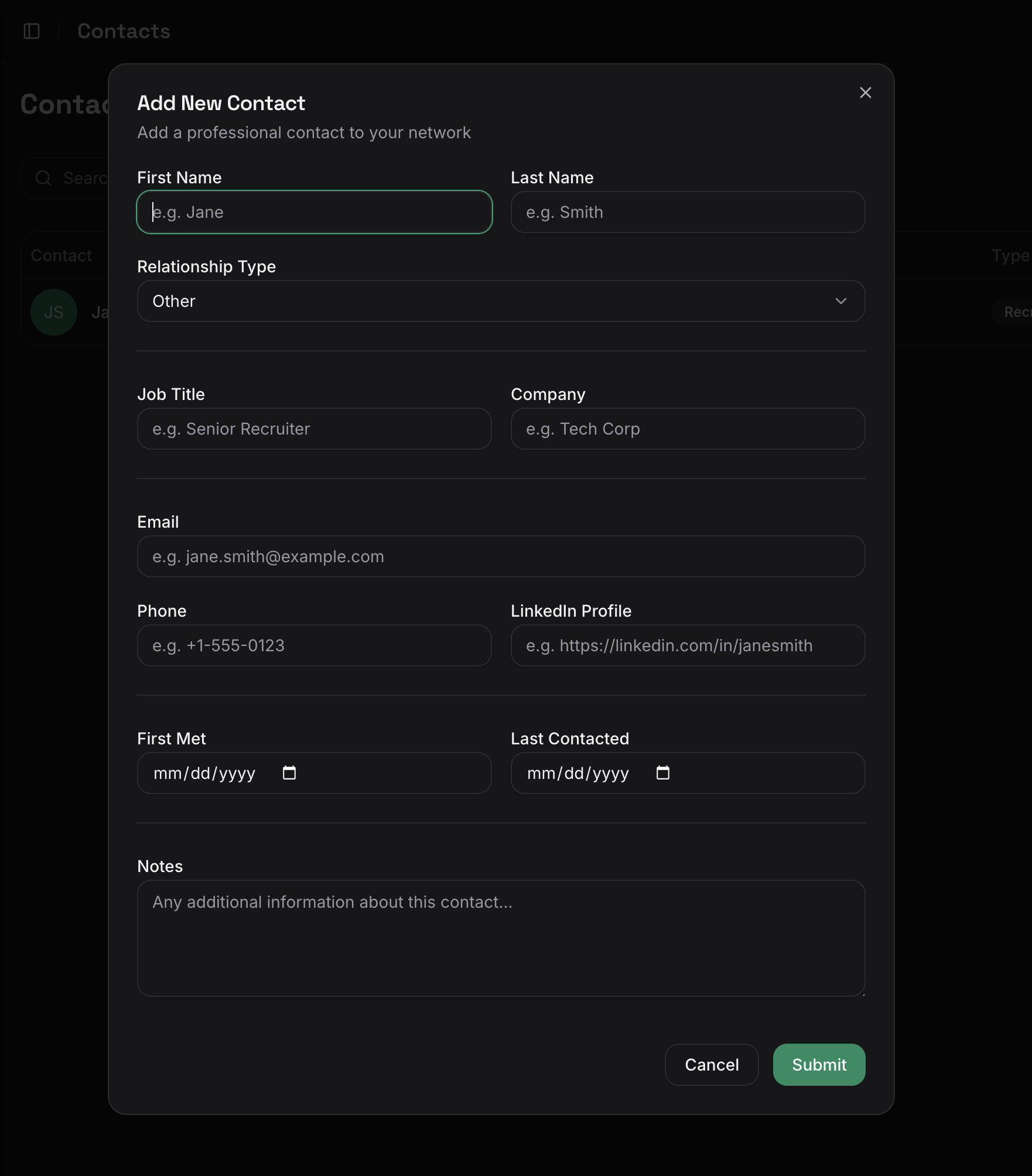
- Click Add Contact.
- Fill in the details:
- Name — The contact's full name
- Email — Their email address
- Phone (optional) — A phone number for quick reference
- Company — The company they work for
- Role/title — Their position (e.g., "Senior Recruiter")
- Contact type — Recruiter, Hiring Manager, Referral, or other
- Click Save.
Link a Contact to an Application
Linking contacts to applications helps you see who is involved in each role at a glance.
- Open an application from the board or list view.
- In the Contacts section, click Add Contact.
- Search for an existing contact or create a new one.
- The contact now appears on the application, and the application appears on the contact's profile.
Note
A single contact can be linked to multiple applications, and an application can have multiple contacts. This is useful when one recruiter is managing several roles you've applied to.
View a Contact's History
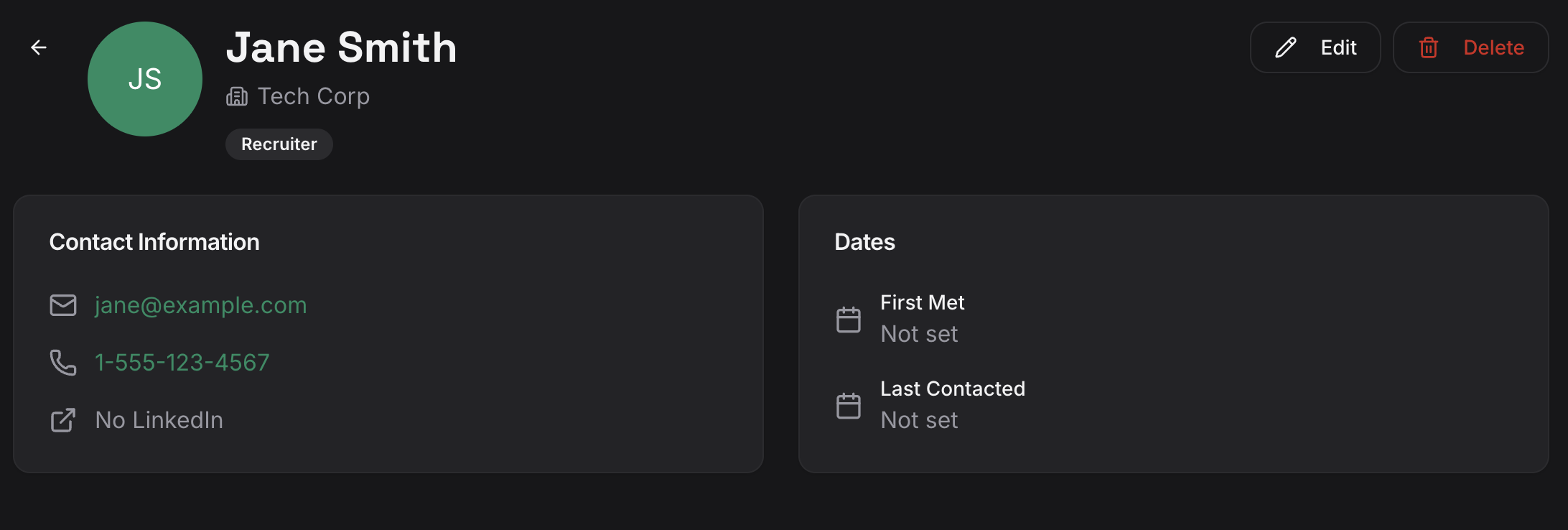
Open any contact to see their full profile:
- Contact details — Name, email, phone, company, and role
- Linked applications — Every application this contact is associated with
- Notes and history — Interaction notes tied to this contact
Next Steps
You've set up your account, added an application, learned the Kanban board, and connected your contacts. You're ready to make the most of JobHawk.
Explore what else JobHawk can do:
- Job Feed — Discover new job postings tailored to your preferences
- Interview Prep — Prepare for interviews with AI-generated materials
- Analytics — Track your pipeline health and application trends